Set Fee Settings
Set Fee Settings
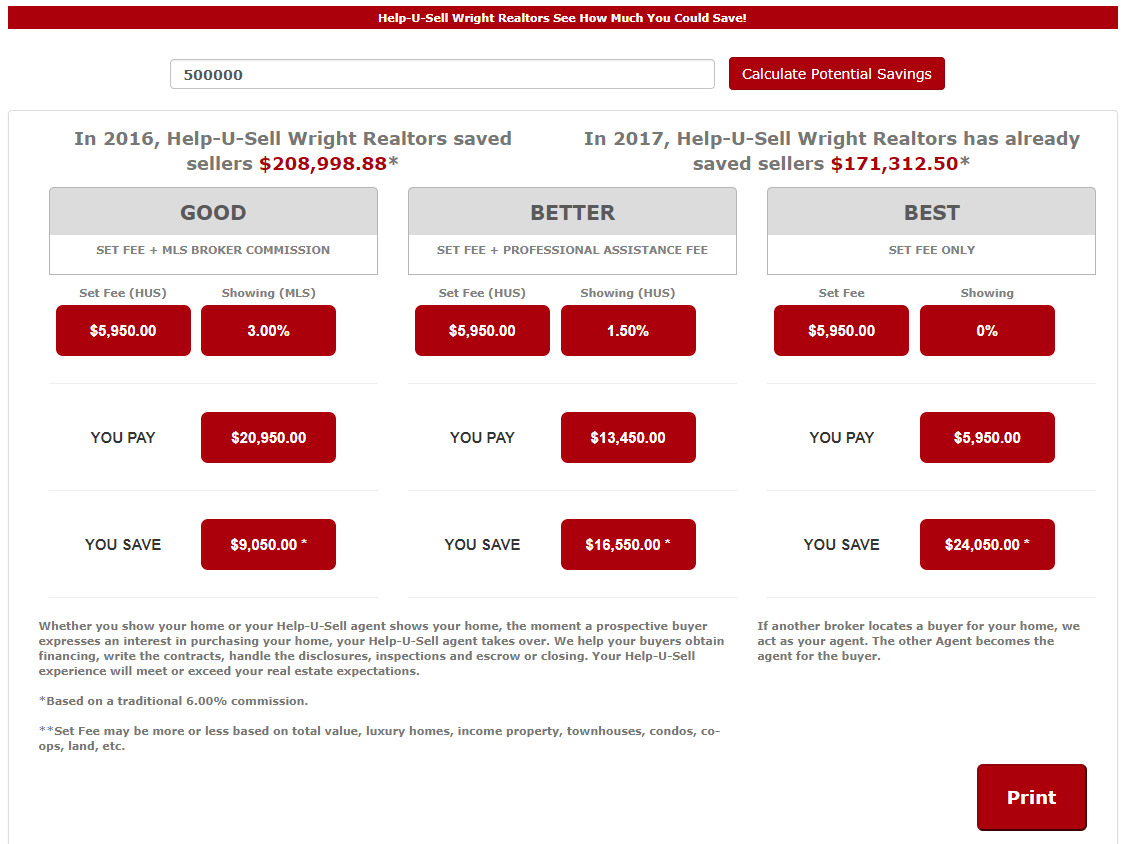
Offices can setup their set fees to be used in calculating potential savings when web users use the Savings Calculator. To configure the calculator follow these steps.
-
Log onto the OMS as the broker.
-
Go to Setup/Website
-
Expand the Set Fee Settings section
-
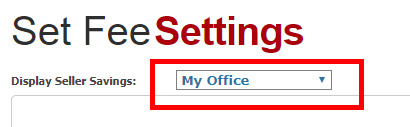
Display Seller Savings allow the office to either show their office savings on the calculator or the entire Help-U-Sell Network's savings. New offices will not have any savings and therefore it is advisable they use the 'Help-U-Sell Group' option until enough savings have been accumulated.
-
You can setup as many Fee brackets as required. We recommend at least 2. Click the 'New Set Fee' link in blue to the right to start.
Tips: Make sure the bracket includes a very low starting point, for example $1.00 or it will break if user put a value in not covered by the range. Same goes for upper range.
-
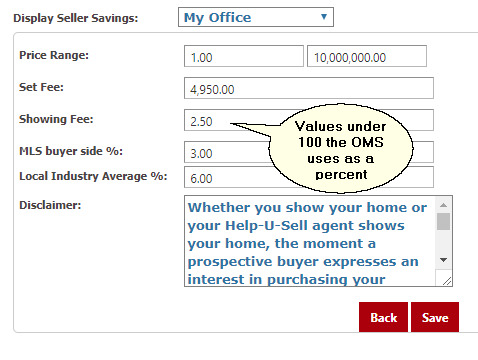
Complete all the fields
- Set Fee = The fee the office charges on the listing side for homes priced in this bracket
- Showing Fee = The Showing Fee the Help-U-Sell Office charges for Showing/Selling the home. (You can use a Dollar or Percent. Any value under 100 the OMS will assume is a percent)
- MLS Buyer Side % = The MLS Showing/Selling side is common in the area and will most likely be offered to MLS agents.
- Local Industry Average % = The Average Industry Average Commission per transaction. (Used for calculating the savings on a listing compared to traditional commission)
- Disclaimer = Default disclaimer (Note: If you change the Industry Average from 6% to 5% for example, disclaimer will have to be adjusted to show the new percent used)
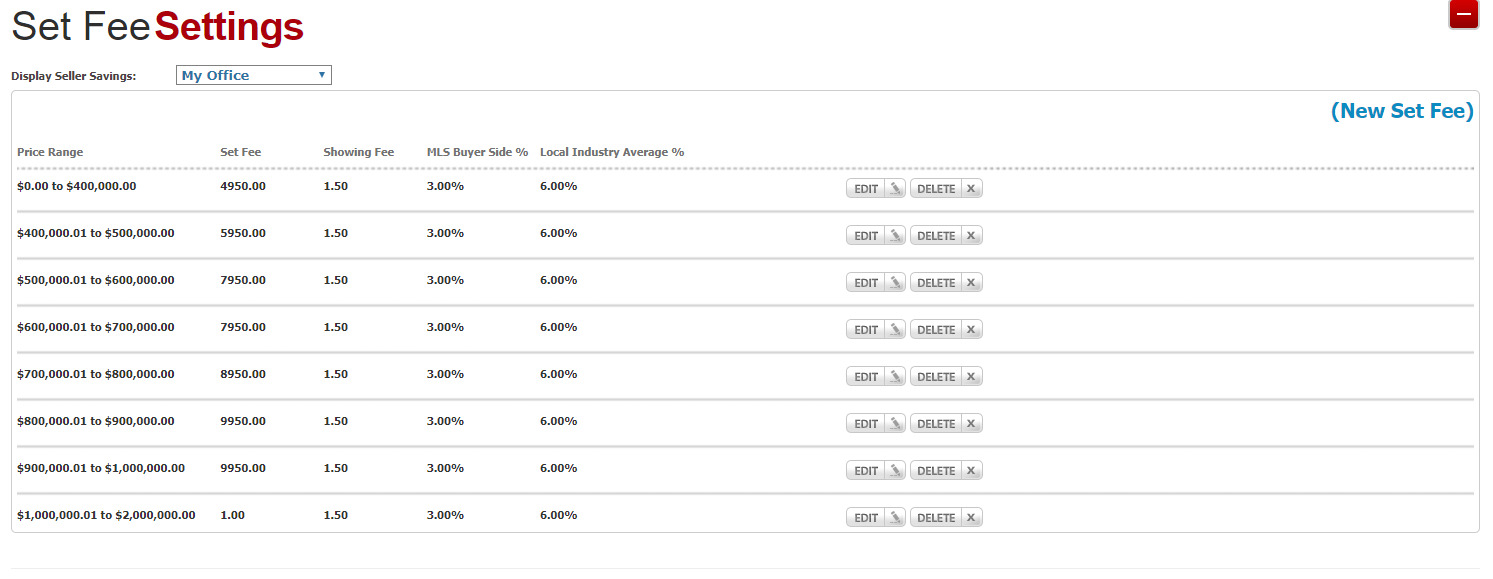
Here is an example of a completed Set Fee Settings with multiple brackets. In the example below I would recommend having a $2,000,001 to $10,000,000 range as well in the event a user puts in a value above $2,000,000